 Filepetal
How to convert PDF to SVG
- Choose one unencrypted PDF in the tool above.
- Select “Convert to SVG”, then inspect the first converted page.
- Save a single SVG, or download and extract the ZIP for a multi-page PDF.
Traced artwork, not the original PDF objects
This converter first renders each visible PDF page, then traces the rendered colors into SVG paths. It does not extract the original PDF curves, fonts or layers. Text becomes outlines rather than editable words; photos and small details may change. Keep the original PDF if you need faithful document reproduction, searchable text or the original drawing geometry.
What happened to editable text?
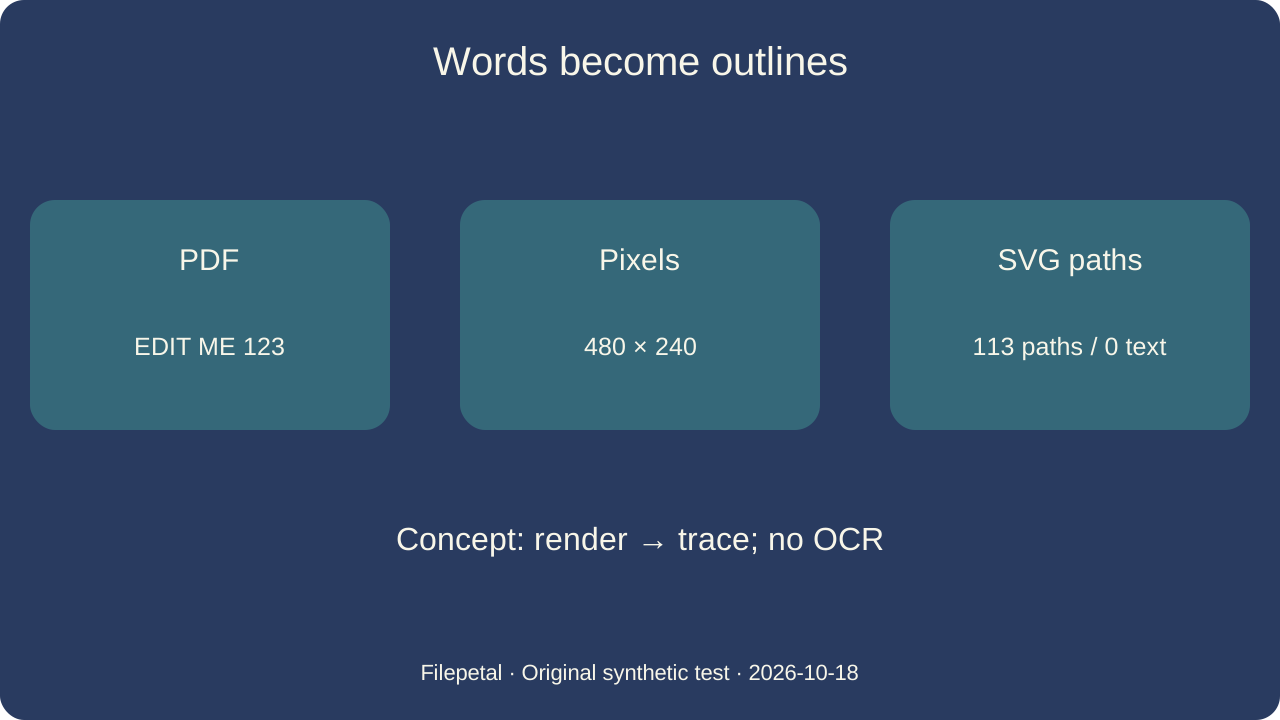
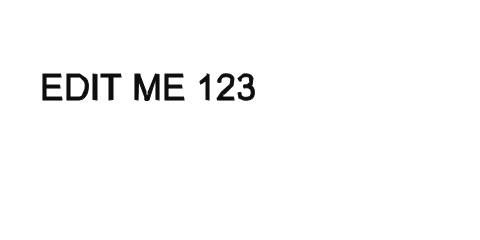
On October 18, 2026, we created a PDF containing real Helvetica text, “EDIT ME 123”, rather than a picture of those letters. Its 240 by 120 point page produced a 480 by 240 SVG. Opening the saved XML showed 113 path elements and no text or image elements. Those counts describe this fixture, not every document. The letters are drawn as shapes; selecting them in an SVG editor does not recover the original text string.
The text PDF was 784 bytes and its saved SVG was 17,413 bytes. Changing the extension to SVG therefore did not make this example smaller. We linked both files below so you can open the PDF, compare the visible letters, and inspect the SVG in a text editor. For a spelling correction, edit the PDF source before conversion; this tool has no OCR or text reconstruction step.
A large SVG canvas does not guarantee original detail
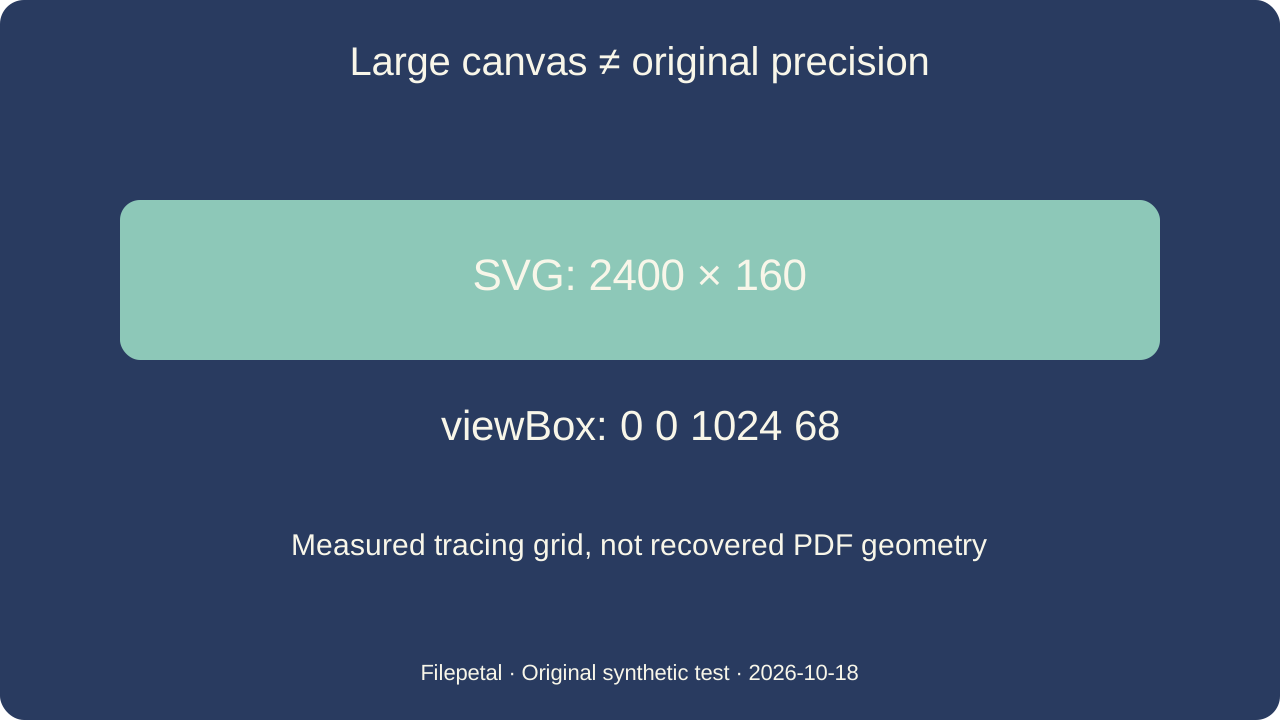
Our five-line fixture uses strokes from 0.1 to 2 PDF points on a 1200 by 80 point page. The saved SVG declares a 2400 by 160 canvas, but its viewBox is 1024 by 68. This reflects the existing intermediate tracing grid: rendered pages are reduced to at most 1024 pixels on the longer side before tracing. Enlarging the final SVG scales the approximation; it does not re-read the original thin strokes.
This check records the actual dimensions and path output, not a claim that every thin line disappears or that another converter fails. Use the downloadable fine-line PDF and SVG to judge your required detail. A logo silhouette may be suitable for tracing; engineering measurements, precise cutting paths and font preservation require a different fidelity check. We have not tested a cutting machine or a third-party editor with these files.
Cropped pages, rotation and a blank page
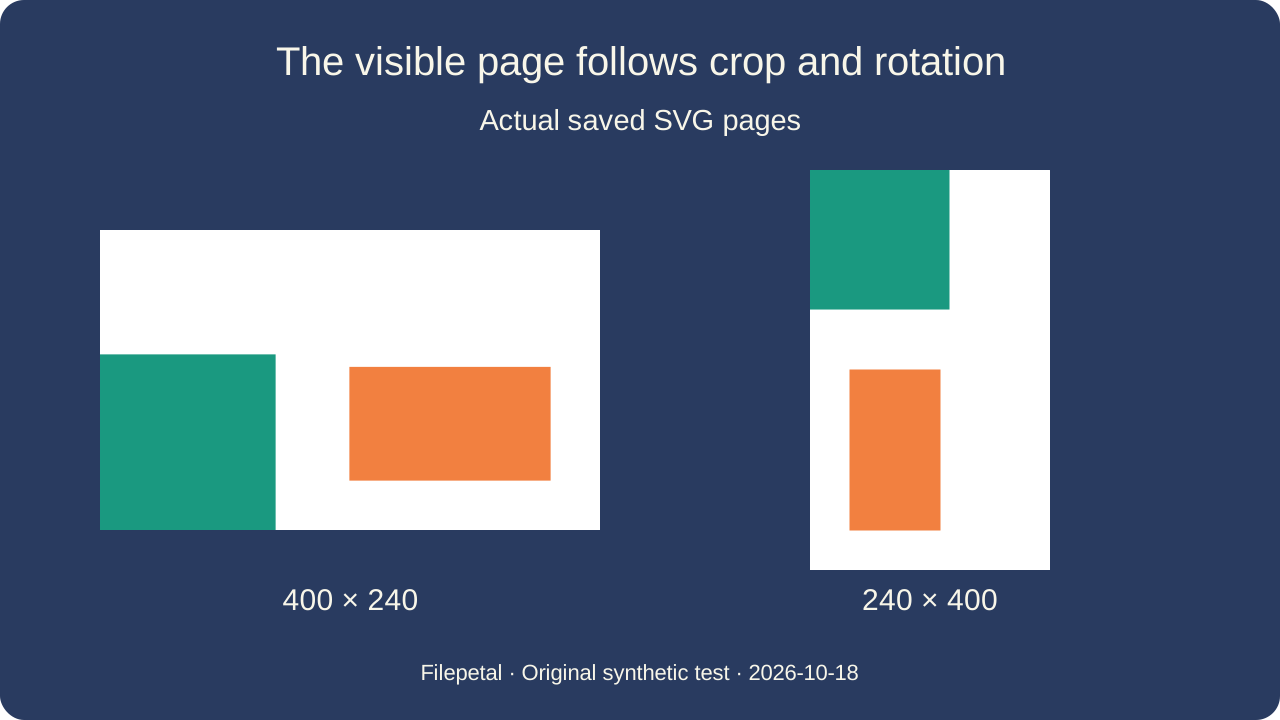
The two-page crop-and-rotation PDF has a 240 by 160 point media box on both pages, with the same visible crop from (20, 20) to (220, 140). Page one produced a 400 by 240 SVG; a 90-degree rotation on page two produced 240 by 400. The ZIP contains page-01.svg followed by page-02.svg. The current preview shows the first page only, so extract the archive and open both files when orientation matters.
Our intentionally blank 100 by 80 point PDF still produced a valid 200 by 160 SVG: one white background path, with no text or embedded image. A successful download does not mean meaningful artwork was found. If your preview is white, compare it with the visible PDF page before using the result. The blank-page output is supplied as a boundary sample, not as a useful illustration or evidence of a new feature.
Download the exact test files
These original synthetic files contain no personal documents. Input and output manifests record bytes, SHA-256 hashes, page dimensions and the experiment date. Exact encoder output can change across versions; the measurements below are not file-size predictions.
| Input PDF | PDF page size / bytes | Saved output |
|---|---|---|
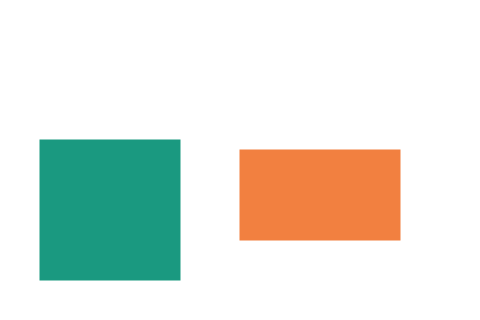
| shapes.pdf | 240 × 160 pt · 800 bytes | shapes.svg 480 × 320 · 671 bytes |
| text.pdf | 240 × 120 pt · 784 bytes | text.svg 480 × 240 · 17,413 bytes |
| fine-lines.pdf | 1200 × 80 pt · 870 bytes | fine-lines.svg 2400 × 160 · 2,283 bytes |
| crop-rotate.pdf | 2 pages · CropBox 200 × 120 pt · 1,159 bytes | crop-rotate.zip 400 × 240 / 240 × 400 · 801 bytes |
| blank.pdf | 100 × 80 pt · 732 bytes | blank.svg 200 × 160 · 289 bytes |


Input manifest · Output manifest · Recreate the PDFs (pypdf)
Supported files and practical limits
Choose one unencrypted PDF. There is no fixed PDF file-size, page-count or combined-pixel cap. Each page is rendered at up to twice its PDF viewport size, scaled to 4096 pixels per side and 16 million pixels per page, then reduced for tracing as described above. Pages are encoded sequentially; the original PDF, first SVG preview and ZIP still use device memory. Conversion can fail on damaged documents or an overloaded device. The cancel button stops conversion without offering a partial download.
There is no page-range, crop, DPI, OCR or tracing-quality selector on this page. A preview helps you inspect the actual first SVG; it is not a certification of fidelity. SVG supports text and image elements as well as paths, but our tested outputs use paths. Read the SVG specification for the format itself.
Frequently asked questions
Why can’t I edit the words in my SVG?
This tool traces a rendered page. Our text fixture produced paths and no text elements, so the original words are not editable text. Edit the source document first; this page does not perform OCR.
Does PDF to SVG preserve the original vectors?
Not in this converter. It redraws the visible page as traced paths. It does not extract the PDF’s existing paths, layers or font objects.
Why do several pages download as a ZIP?
Each PDF page produces its own SVG. The first page is previewed, and the ZIP contains all pages in numbered order. Extract it to inspect pages after the first.
Can I use the result directly as a cutting file?
We have not tested a cutter. Traced outlines can differ from the source, and the tool does not isolate a flower, remove the page background or validate cut geometry. Inspect and prepare the file in your cutting workflow first.