 Filepetal
How to convert HEIC to PNG
- Choose one HEIC file in the tool above.
- Select “Convert to PNG”. The file is decoded and encoded in your browser.
- Inspect the actual PNG preview, including its orientation and transparent areas, then download it.
Use PNG when the receiving app needs a PNG image or when you need to retain existing transparent areas. Keep the HEIC original. This converter creates one still image; it is not a background remover, photo restorer, or extractor for every image inside a HEIC container.
What our HEIC samples actually produced
On October 10, 2026, we converted four self-made HEIC files in the desktop in-app browser, saved the offered PNG downloads and decoded them independently with Pillow. Three additional files tested errors. The inputs were generated on October 9 with Pillow 11.3.0 and pillow-heif 1.8.0, using HEIC quality 80. They are small synthetic test images, not iPhone photos. The browser engine version was not recorded.
| Input and purpose | HEIC dimensions / bytes | Downloaded PNG |
|---|---|---|
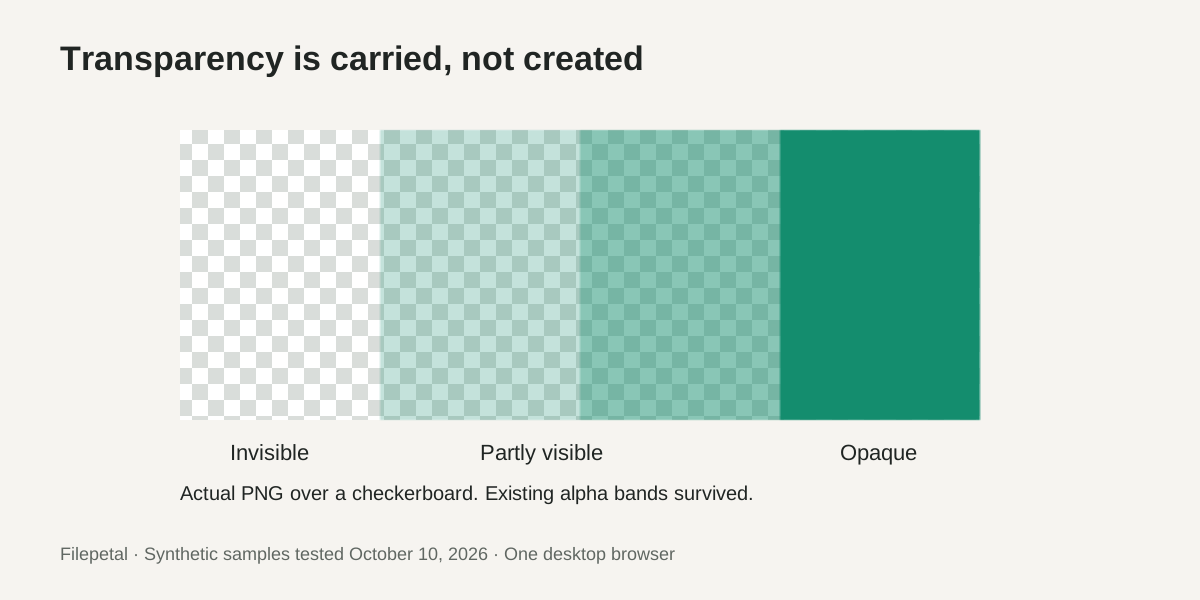
| Four transparency bands | 320 × 192 px 1,970 bytes | 320 × 192 px · 2,213 bytes |
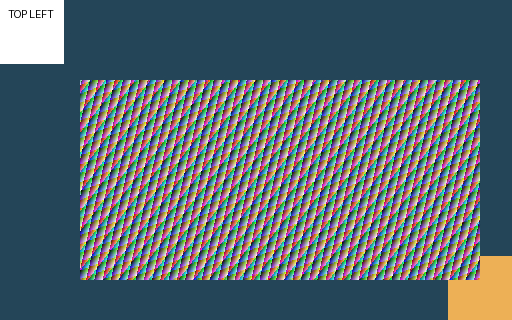
| Orientation marker with EXIF 6 | 256 × 384 px decoded 1,629 bytes | 256 × 384 px · 4,680 bytes |
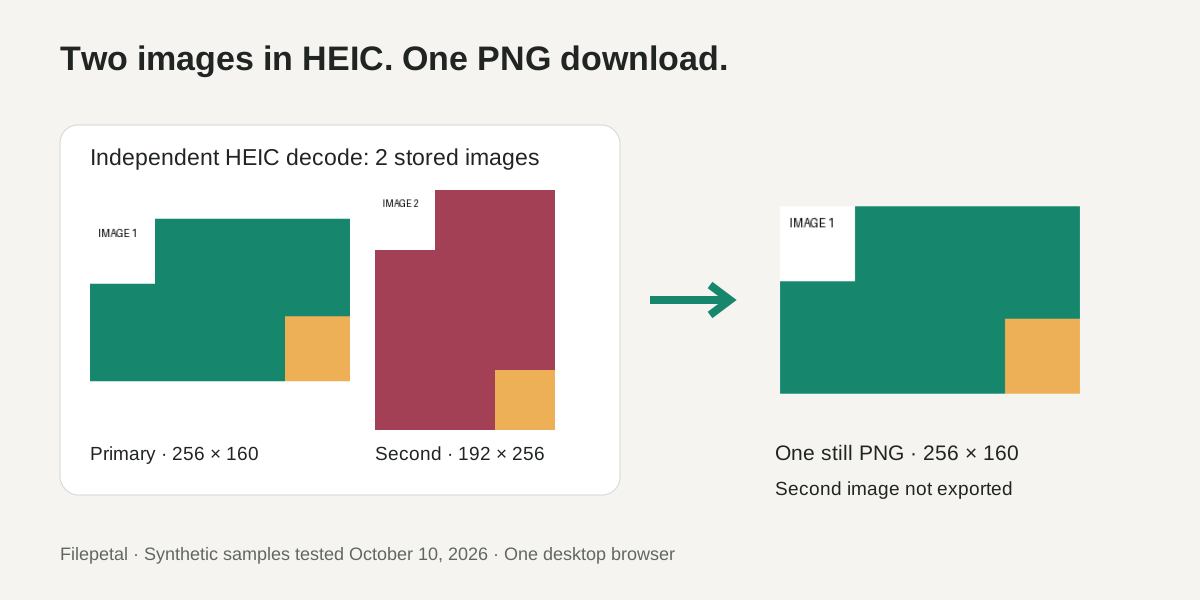
| Two distinct stored images | 256 × 160 and 192 × 256 px 2,990 bytes | One PNG · 256 × 160 px · 2,585 bytes |
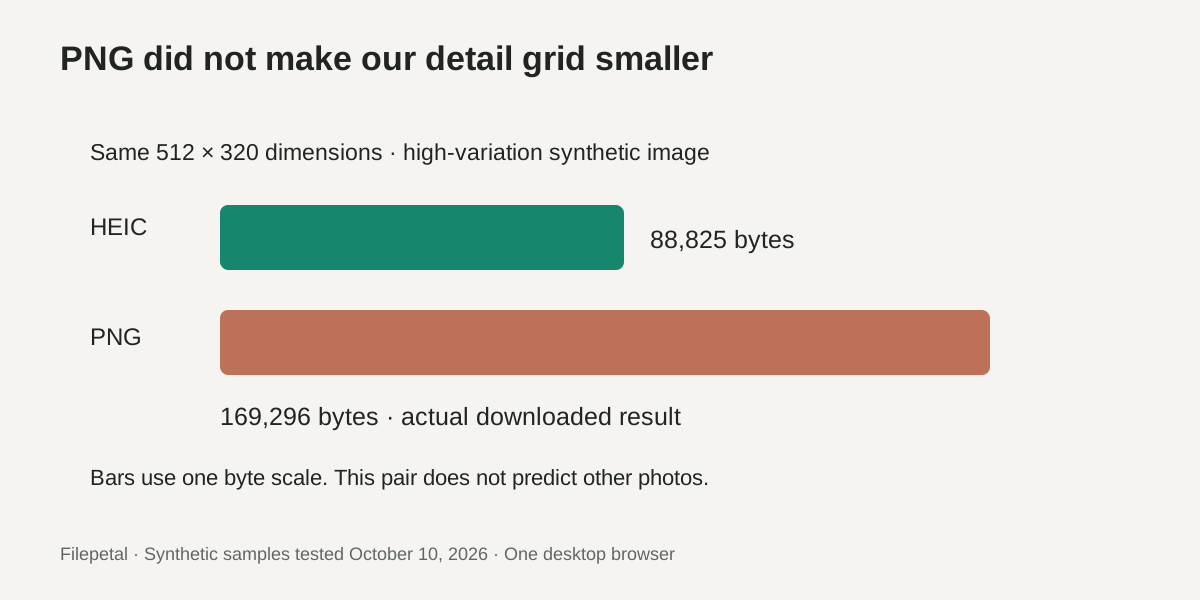
| High-variation detail grid | 512 × 320 px 88,825 bytes | 512 × 320 px · 169,296 bytes |







Transparency was retained, but hidden colors changed
Our four vertical bands use alpha values 0, 64, 128 and 255. At their centers, the downloaded PNG retained all four values. The first band was invisible; the next two were partly transparent; the last was opaque. This establishes transparency handling for this one RGBA sample. It does not establish that every HEIC variant or auxiliary transparency representation is supported.
The fully transparent band’s hidden RGB became black in the PNG. The quarter-opacity band also had small RGB differences from the independent HEIC decode. Consequently, we do not call this entire HEIC-to-PNG path pixel-identical. PNG’s lossless storage does not mean the original HEIC container, its hidden colors, or its metadata survived unchanged. Look at the image over a background when deciding whether the visible result works for you.
Orientation needs a visual check
The marker input carries EXIF orientation value 6. Its downloaded PNG was still 256 × 384 pixels, with the orange corner at the top left and the “TOP LEFT” label upside down near the bottom right. The independent HEIC reference showed the same arrangement. This fixture is a warning, not a successful demonstration of universally correct automatic rotation. The encoding path can combine stored image transforms and EXIF information; this test does not isolate which stage determined the result.
No EXIF orientation tag was found in the saved PNG. A receiving viewer therefore cannot rely on that original tag to fix this sample. Check an easily recognized edge, face or label in the preview. If it is wrong, correct the orientation in an editor and keep the original file. We did not test other orientation values, phone models, HDR or color-profile fidelity.
A multi-image HEIC became one still PNG
Our container stores a green landscape marker as its primary image and a different red portrait marker as its second image. Independent decoding confirms both are present. Filepetal offered one PNG: the green 256 × 160 image. The second 192 × 256 image was not included, and there was no archive or image-selection control. This is a measured result for this container, not a rule about the ordering of every HEIC file.
If you need every stored picture, use an extraction workflow that explicitly handles them. A successful download from this tool means one still result is available; it does not confirm that a burst, sequence, depth image, or all auxiliary images were exported. Opening the original beside the download is a useful check before replacing it.
PNG was larger for our detail grid
The high-variation input was 88,825 bytes; its PNG was 169,296 bytes. That sample grew despite keeping its 512 × 320 dimensions. The two-image container moved the other way, from 2,990 to 2,585 bytes, but the PNG omitted its second image. That smaller output is not an equivalent-content compression win. These exact byte pairs do not predict the size of your photograph or promise a percentage saving.
Three errors produced no download
A 43-byte text file named .heic failed header validation. A 64-byte truncated HEIC passed far enough to reach decoding, then failed. A valid 4097 × 96 HEIC failed the side-length limit even though it was only 1,586 bytes. Each error cleared the preceding download. Compressed byte size alone therefore did not determine whether this sample could be converted.
The current limits are 20 MiB per file, 4096 pixels per side and 16 million pixels total. We tested the oversized side, not the separate byte or total-pixel thresholds. Unsupported codecs can also fail. Read the displayed error and retain your original rather than interpreting a rejected file as an empty successful conversion.
Reproduce the inputs with the generation script; use the input manifest and dated output record for exact dimensions, bytes, SHA-256 hashes and the independent inspection scope. The original generation date remains October 9. Browser versions and encoders can change output bytes. These paired materials provide evidence; they do not establish an exclusive advantage over other converters.
Three things to check before replacing your HEIC
These original diagrams summarize the October 10 sample results. They show the tested files and limits of the conclusions, rather than predicted results for all photos.
HEIC to PNG questions
Will converting a photo to PNG remove its background?
No. PNG can store transparency, but a format change does not identify and erase an opaque background. Our test retained transparency that already existed. Background removal requires a separate editing step. The W3C PNG specification describes alpha storage; that capability alone is not a background-removal function.
Does a PNG download contain every image in my HEIC?
Do not assume so. Our two-image test produced just its primary landscape image. This converter offers a single still PNG, without a control for choosing or extracting the other images.
Why does my PNG look rotated?
Stored transforms and orientation metadata can affect decoding. Our EXIF-6 marker was upside down in the output, and the PNG did not contain the original orientation tag. Inspect the preview and correct the direction in an editor when necessary; we do not promise correct automatic orientation for every HEIC.
Why is the PNG bigger than the HEIC?
The formats encode image content differently. Our detail grid grew from 88,825 to 169,296 bytes. The tool displays your actual output size after conversion; it does not promise smaller files or restoration of detail previously lost in the source.
Can I upload several HEIC files or export a ZIP?
This page takes one file and offers one still PNG. It does not provide batch selection or a ZIP of all HEIC items. Keep the source if you need additional stored images or metadata.