 Filepetal
How to convert PNG to WebP
- Choose one PNG in the tool above.
- Keep quality 92 or choose 60 or 100, then select “Convert to WebP”.
- Inspect the actual WebP preview, dimensions and byte count, then download it.
The checkerboard helps you see transparent areas; it is not written into your image. The preview opens the same WebP file offered for download. Changing quality clears the previous result, so convert again to apply your new choice.
Choose quality for your picture
Quality is an encoder setting, not a percentage of original detail retained. The tool passes 0.60, 0.92 or 1.00 to your browser’s image encoder. Quality 92 keeps the previous default. Try another setting when a file is too large or a fine edge looks wrong; compare the actual download rather than assuming that one number is best for every image.
This page produces one still WebP at the decoded PNG dimensions. It has no resize, batch or animation control. Choose a valid PNG up to 20 MiB (20,971,520 bytes), at most 4096 pixels per side and 16 million pixels total. These are the current tool’s input bounds, not the WebP format’s maximum. Your file is decoded and encoded locally in your browser.
What our PNG to WebP downloads actually showed
On October 14, 2026, we saved six original synthetic PNG conversions from the live Filepetal page at its existing quality 92. We repeated them in the updated tool and also tested settings 60 and 100 on three inputs. The six default outputs matched the previous downloads byte for byte. We opened the saved files with Pillow 11.3.0 and parsed their PNG and WebP containers separately. The measurements describe this desktop in-app browser; its engine version was not recorded, and other browsers can produce different bytes.
| Original paired sample | PNG input | WebP at quality 92 | Measured result |
|---|---|---|---|
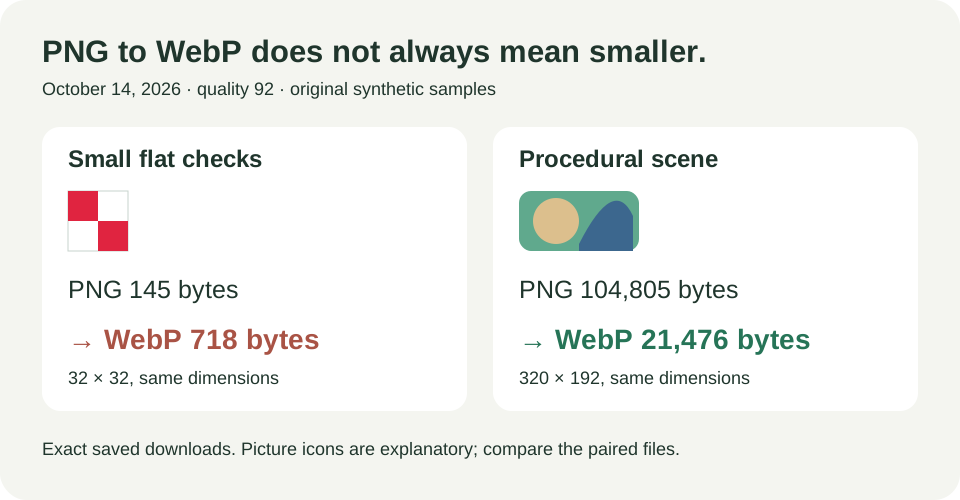
| Flat checks · WebP | 32 × 32 · 145 bytes | 32 × 32 · 718 bytes | Small two-color artwork became larger; edges changed. |
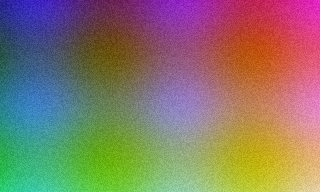
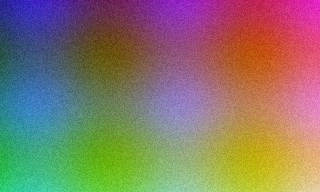
| Procedural scene · WebP | 320 × 192 · 104,805 bytes | 320 × 192 · 21,476 bytes | A smaller still image; not a lossless color copy. |
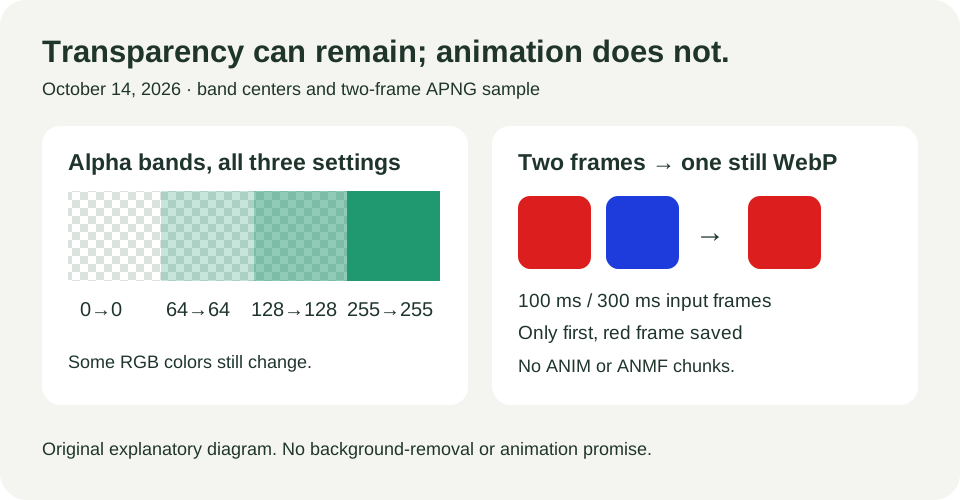
| Alpha bands · WebP | 128 × 64 · 250 bytes | 128 × 64 · 626 bytes | Four band-center alpha values stayed 0, 64, 128 and 255. |
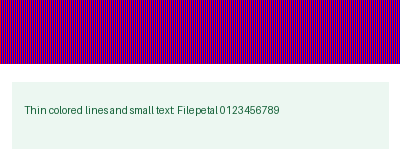
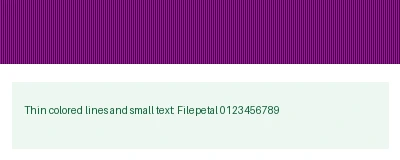
| Thin colored lines · WebP | 400 × 160 · 3,543 bytes | 400 × 160 · 3,628 bytes | Red/blue one-pixel stripes became purple-toned. |
| Metadata note · WebP | 96 × 48 · 307 bytes | 96 × 48 · 562 bytes | Title/comment and source DPI were not carried across. |
| Two-frame APNG · WebP | 48 × 32 · 355 bytes | 48 × 32 · 574 bytes | Only the first, red frame became a still image. |






A smaller format does not guarantee a smaller download
The flat checks use just red and white, repeated across a small square. PNG stores that pattern in 145 bytes. Its quality-92 WebP occupies 718 bytes. The procedural scene is different: it contains smooth color changes and seeded noise, making the original PNG much larger. Its WebP occupies 21,476 bytes instead of 104,805. It is original generated artwork, not a real photograph, so the example does not establish a saving for every camera image.
Container overhead matters for small files. Every saved WebP in this study includes a 456-byte ICCP color-profile payload. With its 8-byte chunk header, that component alone takes 464 bytes, already more than the entire 145-byte flat PNG. This observation helps explain these downloads; it is not a claim that every browser writes the same profile. Google’s WebP FAQ also explains why converting few-color PNGs through lossy compression can produce larger files. Keep the PNG when the actual WebP offers no useful size or appearance benefit.
Higher quality is not a promise of increasing file size
We selected each setting in the actual tool, saved its offered download and checked its container. The table below compares three inputs without changing their dimensions. The settings are requests to this browser’s encoder, not a target file size and not the fraction of pixels retained. Trying more than one can help you make a decision using your own image.
| Input | Quality 60 | Quality 92 | Quality 100 |
|---|---|---|---|
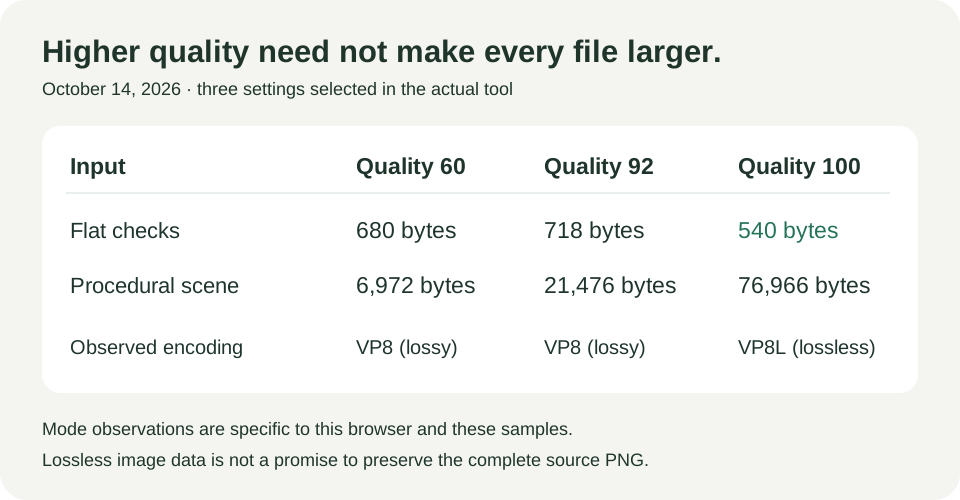
| Flat checks · PNG 145 bytes | 680 bytes | 718 bytes | 540 bytes |
| Procedural scene · PNG 104,805 bytes | 6,972 bytes | 21,476 bytes | 76,966 bytes |
| Alpha bands · PNG 250 bytes | 628 bytes | 626 bytes | 552 bytes |


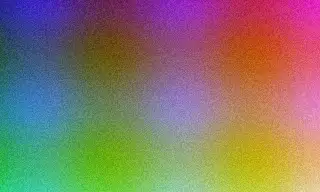
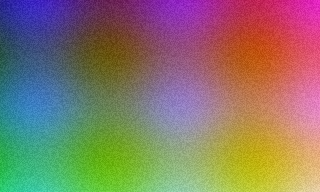


At settings 60 and 92, these downloads contain VP8 lossy image data. At 100, the three inspected downloads contain VP8L lossless image data, and the flat example becomes smaller than either lower setting. That is what this browser wrote for these samples. It does not establish that every browser maps 100 to the same mode, nor that a lossless WebP payload preserves all information in the original PNG. A browser first decodes the PNG into a canvas; animation, metadata and some color values can already have changed at that stage. The canvas encoding API describes how the quality argument is passed.
Transparency and color accuracy are different questions
The band test begins with alpha 0, 64, 128 and 255. At all three settings, the saved band centers retain those four alpha values. The partly transparent green band’s RGB does change: for example, its alpha-128 center at quality 92 is (31, 151, 113), compared with (32, 152, 112) in the source. At quality 100 it is (32, 151, 112). Fully transparent centers decode to zero RGB. Those readings support the measured transparency behavior, not a claim of an identical source color copy.
The thin-line input has alternating one-pixel red and blue stripes above a panel of small text. At quality 92, its first four output stripe samples are purple-toned rather than the original pure red/blue colors. Open the source and download at a readable size to compare the lines and lettering. The pixel dimensions remain 400 × 160, so matching width and height alone does not establish matching detail. For fine colored diagrams, keep the original PNG and compare the actual output before replacing it. Conversion also does not remove an opaque white background.
Animated inputs become still images without a complete metadata archive
The APNG fixture contains two 48 × 32 frames: a red marker held for 100 milliseconds and a blue marker held for 300, looping indefinitely. The saved WebP has one frame, shows the red marker and has no ANIM or ANMF animation chunks. Our new quality selector does not add animation handling. A still preview can show whether the picture is useful, but cannot turn a one-frame output back into an animation. Use an animation-capable converter when both frames and timing are required.
The metadata fixture contains a PNG Title, Comment and approximately 300 DPI resolution information. Its WebP carries none of those source labels or resolution information in the inspected result, and has no EXIF or XMP chunks. It does contain the 456-byte ICCP profile. Therefore we do not describe this output as metadata-free, and these tests do not certify that every private tag is removed from every source. Keep the original file when its embedded information matters.
Repeat the study and the error boundaries
Download a paired PNG and WebP above. Select that PNG, use the recorded setting, inspect the preview and save the offered result. The input manifest and output record include the test date, dimensions, exact bytes, frame counts and SHA-256 hashes. The CC0 generator, independent inspection script and reproduction notes let you recreate the inputs and check a real downloaded container. Google’s container specification distinguishes image, alpha, profile and animation chunks.
We also selected a text file named PNG, a 40-byte truncated PNG and a valid 4097 × 32 PNG beyond the current side bound. Each returned an error with no WebP download or stale preview. These are repeatable boundaries, not an exhaustive test of corrupt or hostile files. We did not test real phone hardware, every browser, print workflows, all color profiles or high-bit-depth PNGs. A hash identifies an exact recorded file; different browser bytes do not by themselves prove a bad image.



PNG to WebP questions
Why did my WebP get larger?
Small simple PNGs can already be compact. Our 145-byte flat PNG became a 718-byte WebP at quality 92; its profile and container overhead contribute. Compare actual bytes and keep the PNG if WebP has no useful benefit.
Does quality 100 preserve the complete original?
No complete-file preservation is promised. The three tested outputs at 100 use lossless WebP image data, but the browser’s earlier canvas step and the still-image workflow can change colors, metadata and animation.
Will transparent areas stay transparent?
Our four band-center alpha values stayed unchanged at all three settings. Some RGB values changed, and an opaque background was not removed. Inspect your actual output on a suitable display background.
Will an animated PNG keep moving?
This tool creates one still image. The tested two-frame APNG became only its first red frame. It does not offer animation controls.
Why did the old preview disappear when I changed quality?
The old download belongs to the previous setting. Changing quality clears it; select “Convert to WebP” again to generate the file for your new choice.