 Filepetal
How to convert SVG to PDF
- Choose one SVG file, drag it into the tool, or paste code and select “Use SVG code”.
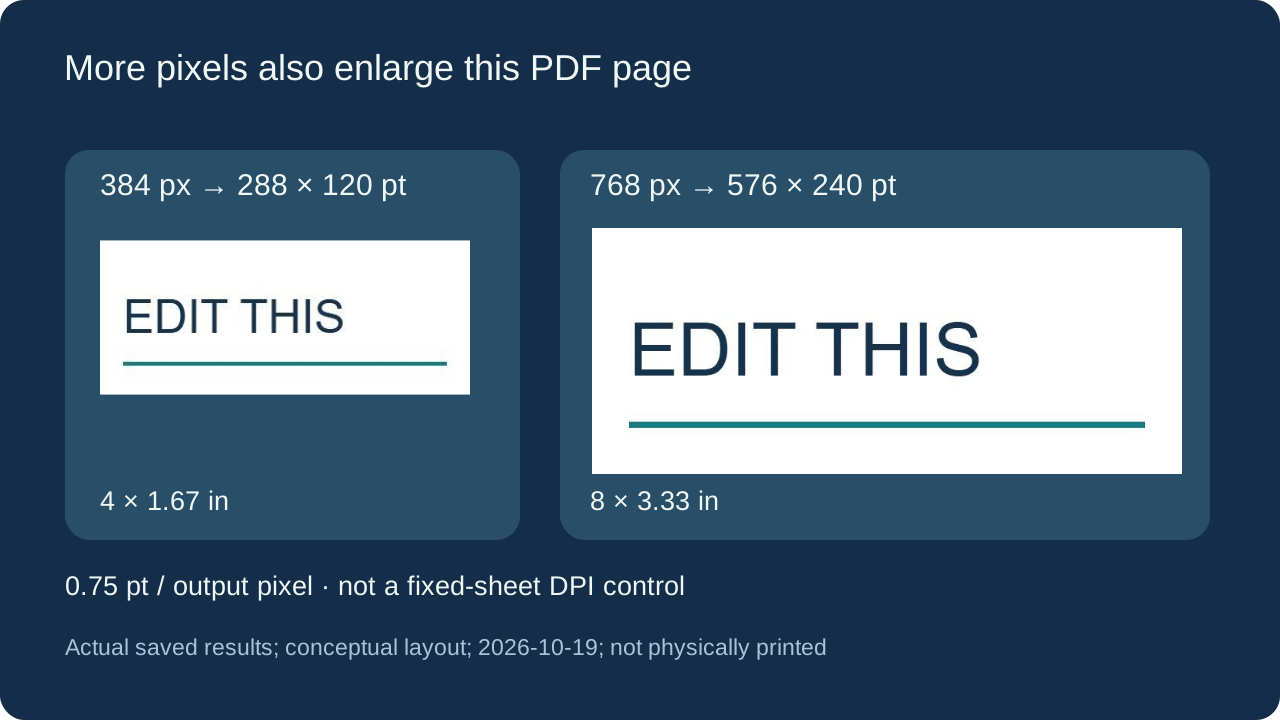
- Choose the output width. This changes both the rendered image and the PDF page dimensions in this tool.
- Select “Convert to PDF”, inspect the actual PDF preview, then download the file.
A rendered image inside a PDF
This converter draws your supported SVG onto a white canvas, encodes that canvas as a JPEG, and places the image on one PDF page. It does not retain the original SVG paths, live text or transparency. A PDF extension by itself does not guarantee vector artwork. Keep your SVG source for editing; use an object-preserving workflow when the recipient requires vectors or selectable words.
Why changing the width also changes the PDF page
On October 19, 2026, we converted the same original text.svg twice. At an output width of 384 pixels, the embedded image was 384 by 160 and the PDF page was 288 by 120 points. At 768 pixels, the image became 768 by 320 and the page became 576 by 240 points. Both dimensions doubled. The downloaded files were 7,149 and 13,400 bytes respectively; those sizes describe these two outputs, not a prediction for another design.
Our current PDF writer assigns 0.75 PDF points to each output pixel. The two pages therefore measure 4 by about 1.67 inches and 8 by about 3.33 inches before a print dialog applies any scaling. Choosing more pixels here does not keep a fixed paper size while increasing print resolution. There is no A4, Letter, margin or DPI selector on this page. Read the saved PDF page properties and check the printer’s fit or actual-size choice. We inspected PDF geometry; we did not print these samples on paper.
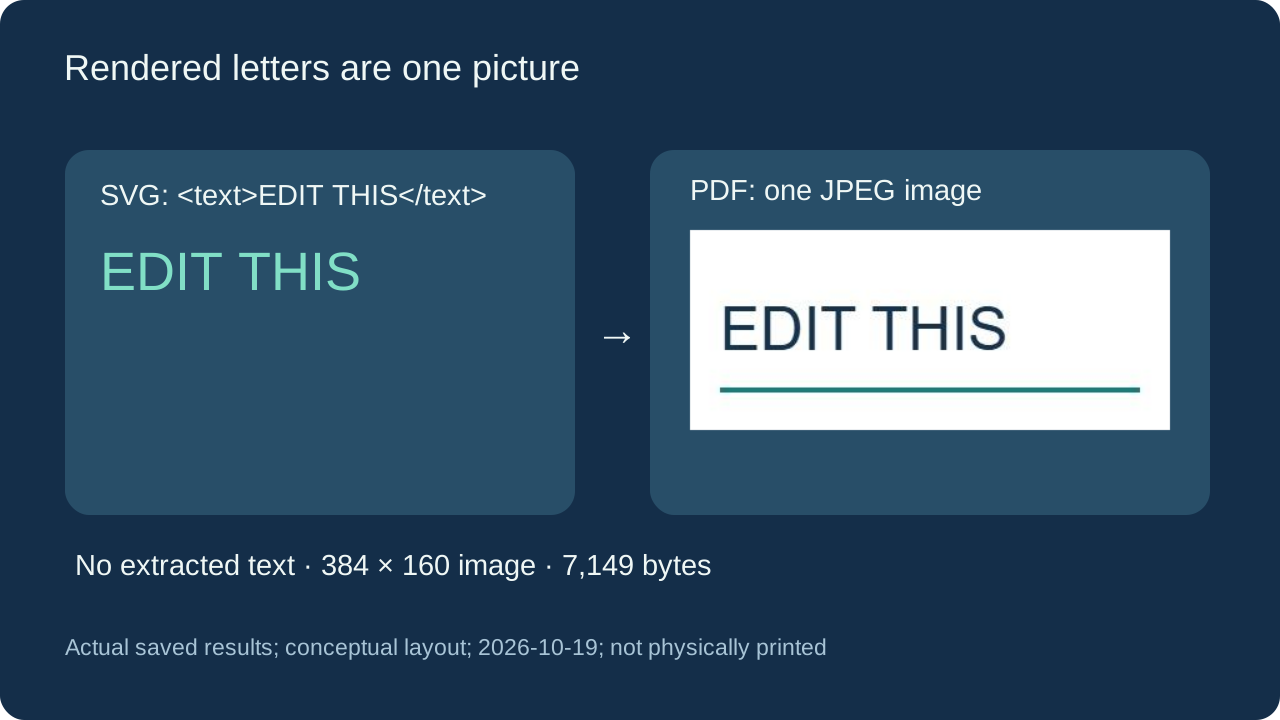
Visible letters are not selectable text
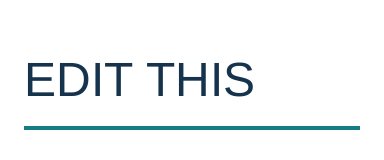
The input contains an actual SVG text element reading “EDIT THIS”, plus a simple line. In the saved PDF, inspecting the page found one JPEG image object and a command that draws that image. Text extraction returned an empty string; the source words were no longer PDF text. The larger-width output also contained one image and no extracted text. This confirms the behavior for the supplied files and current encoder; it is not a claim about every SVG-to-PDF service.
A larger bitmap may show more rendered detail, but it does not recover editable font objects. The preview above opens the actual generated PDF, whereas the preview before conversion shows the selected SVG. Neither preview is an OCR or editing feature. If a name or label needs correcting, change the SVG source first. Device fonts can affect the initial rendering, and the input requests Arial, but the resolved device font was not independently identified. This is not a custom-font portability test.
Transparent artwork and an already white background
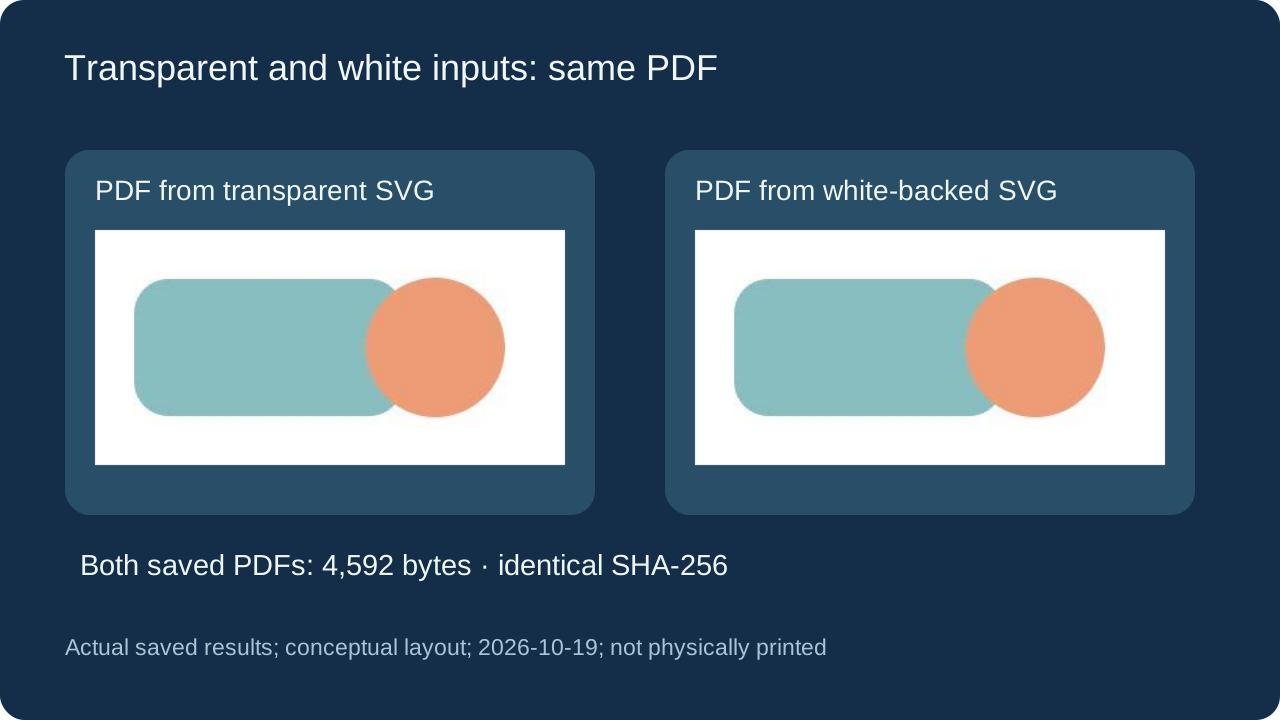
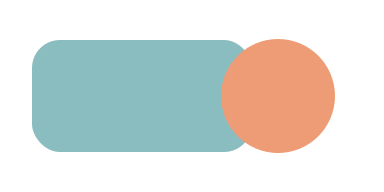
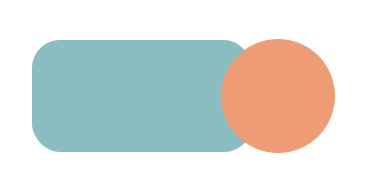
We made two 384 by 192 SVGs with identical semi-transparent teal artwork and an opaque peach circle. One has no background rectangle; the other explicitly paints the whole canvas white. Their saved PDFs were byte-for-byte identical, each 4,592 bytes, with the same SHA-256 recorded below. The image inside each PDF is RGB JPEG without an alpha mask. In this pair, transparency was composited onto white; the conversion did not preserve a transparent PDF background.
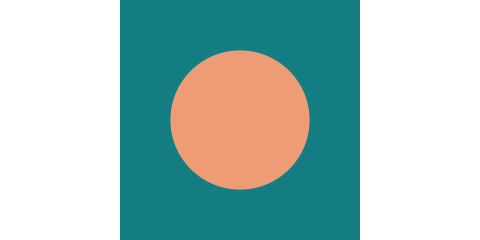
Our separate canvas-meet.svg uses a 480 by 240 outer canvas and a square 100 by 100 viewBox. The default proportional fit leaves side areas around the square artwork; the PDF keeps the entire 360 by 180 point page. A white area may therefore come from transparent space, an explicit white rectangle, or the source canvas around the drawing. This page has no crop or background-removal control. Compare the source boundaries before assuming the converter added a removable border.
SVG units and integer rounding need their own check
The inch-viewbox.svg fixture declares width="2in" and height="1in", with a 400 by 200 viewBox. This tool’s existing dimension parser accepts numeric or px dimensions; other unit strings fall back to the viewBox. The actual default-width PDF was 300 by 150 points, rather than a two-inch-wide page. Our 101 by 67 SVG at width 99 produced a 99 by 66 image and a 74.25 by 49.5 point page. The height was rounded to a whole pixel. These are measured normalization and rounding boundaries, not new sizing controls.
Download the exact SVG and PDF pairs
Original synthetic inputs and real saved PDFs are dated October 19, 2026. Manifests include input/output bytes, dimensions and SHA-256. Run the supplied Python generator to recreate the inputs; it does not claim to reproduce a browser’s JPEG encoder on another device.
| Input SVG | Output image / PDF page | Saved PDF |
|---|---|---|
| canvas-meet.svg 188 bytes | 480 × 240 px 360 × 180 pt | canvas-meet.pdf 5,727 bytes |
| inch-viewbox.svg 212 bytes | 400 × 200 px 300 × 150 pt | inch-viewbox.pdf 7,436 bytes |
| painted-white.svg 275 bytes | 384 × 192 px 288 × 144 pt | painted-white.pdf 4,592 bytes |
| rounding.svg 234 bytes | 99 × 66 px 74.25 × 49.5 pt | rounding-99.pdf 3,404 bytes |
| text.svg 238 bytes | 768 × 320 px 576 × 240 pt | text-768.pdf 13,400 bytes |
| text.svg 238 bytes | 384 × 160 px 288 × 120 pt | text.pdf 7,149 bytes |
| transparent.svg 230 bytes | 384 × 192 px 288 × 144 pt | transparent.pdf 4,592 bytes |


Input manifest · Output manifest and hashes · Recreate the inputs (Python)
Supported files and practical limits
Choose one static, self-contained SVG, up to 2,097,152 bytes. Source and output are limited to 4096 pixels per side and 16 million pixels. Scripts, external references, embedded images, style blocks or attributes, animation, use and foreignObject are rejected. Presentation attributes such as fill and stroke are supported. The PDF output is one page with a white-backed JPEG at the current fixed quality; there is no page merging, vector-preservation, OCR, cropping or print-quality certification. Failed inputs produce no result download.
Frequently asked questions
Does SVG to PDF keep the original vectors?
This tool rasterizes the artwork and embeds one JPEG on a PDF page. The original paths and editable text are not retained. PDF itself can contain vectors, but that is different from what this converter currently writes.
Why did my PDF page get bigger when I increased the width?
In this converter, each output pixel maps to 0.75 PDF points. Increasing the width also enlarges the PDF page; it is not a DPI setting on a fixed sheet. Check the PDF page properties and your print settings.
Will a transparent SVG stay transparent in the PDF?
No. The current conversion paints the canvas white before drawing and JPEG encoding. Our transparent-background and explicit-white-background samples produced identical PDFs. Keep the SVG or choose a format and workflow that preserves alpha when needed.
Can I select or search the text in the output?
The letters are part of the embedded image. Our text sample produced no extractable PDF text, and this page has no OCR step. Edit the SVG first if its wording is wrong.
Does the preview show my input SVG or the finished PDF?
Before conversion it shows the selected SVG. After a successful conversion, this page opens and renders the first page of the actual PDF download and reports its page dimensions and bytes. This helps inspection; it does not certify print fidelity.